You can wirelessly mesh a U7-Pro-Max to an existing UniFi access point in your UniFi system and provide a downlink to a device (we used a USW-Lite-16-PoE).
This guide shows how to do this via unifi.ui.com.
There are a few things needed
- Existing UniFi OS Console with the Network Application installed.
- Wireless Meshing is enabled. You can do this via Network Application > Settings > WiFi >Next to Wireless Meshing, check the checkbox.
- An existing UniFi access point with the mesh parent setting enabled. You can do this by selecting the access point and checking the mesh parent check box.
- An existing UniFi access point with the mesh connect setting enabled. You can do this by selecting the access point and checking the mesh connect check box. (This needs to be done while the AP is cabled directly to the network before you use wirelessly meshing.
Once you have this you can power on the AP without an ethernet connection to the network via a PoE injector. If it's within range of a UniFi access point with mesh parent enabled, it will come back online.
After that, you can connect the downstream device (in our case a switch) via the LAN port of the Wirelessly meshed AP's PoE Injector.
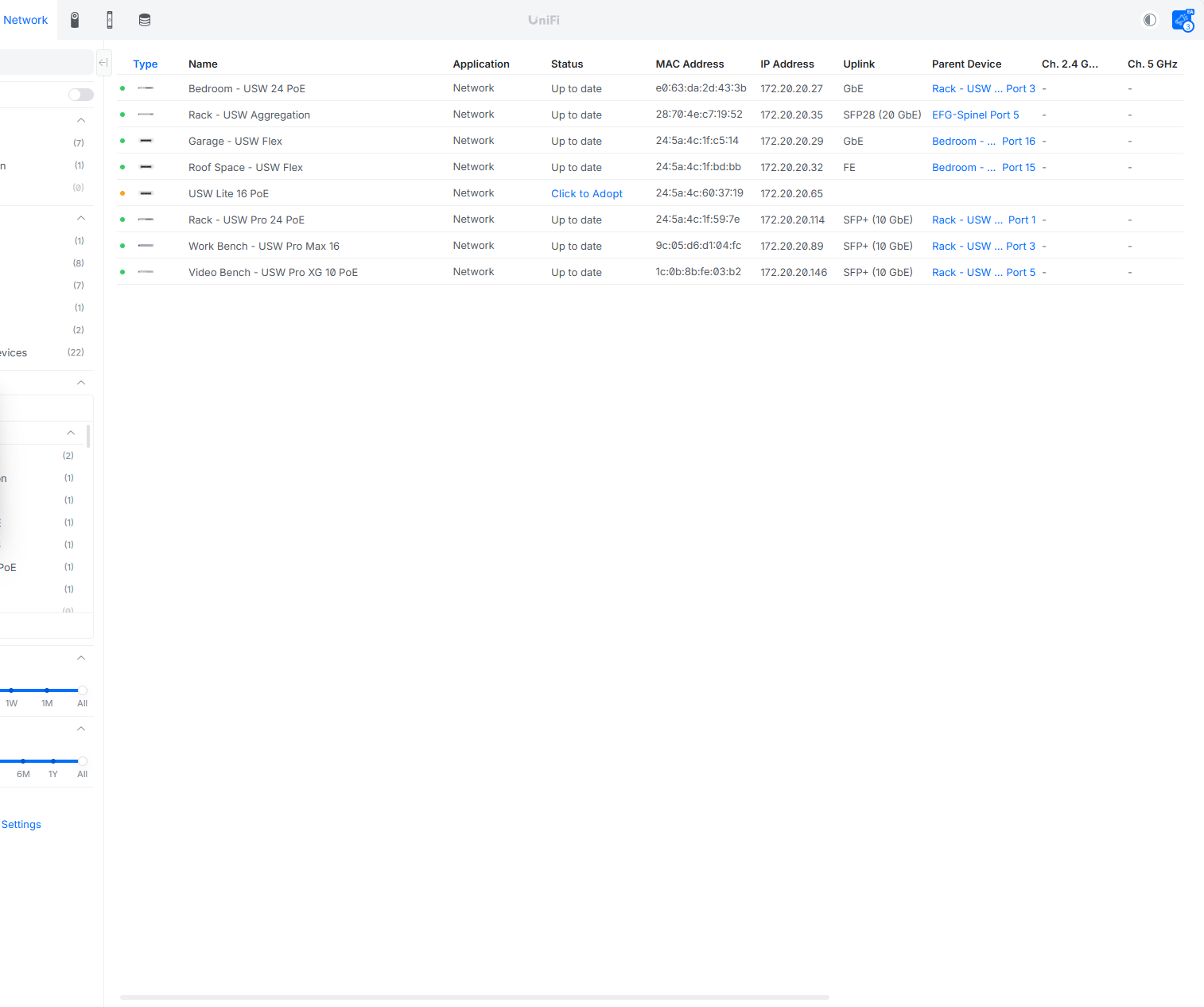
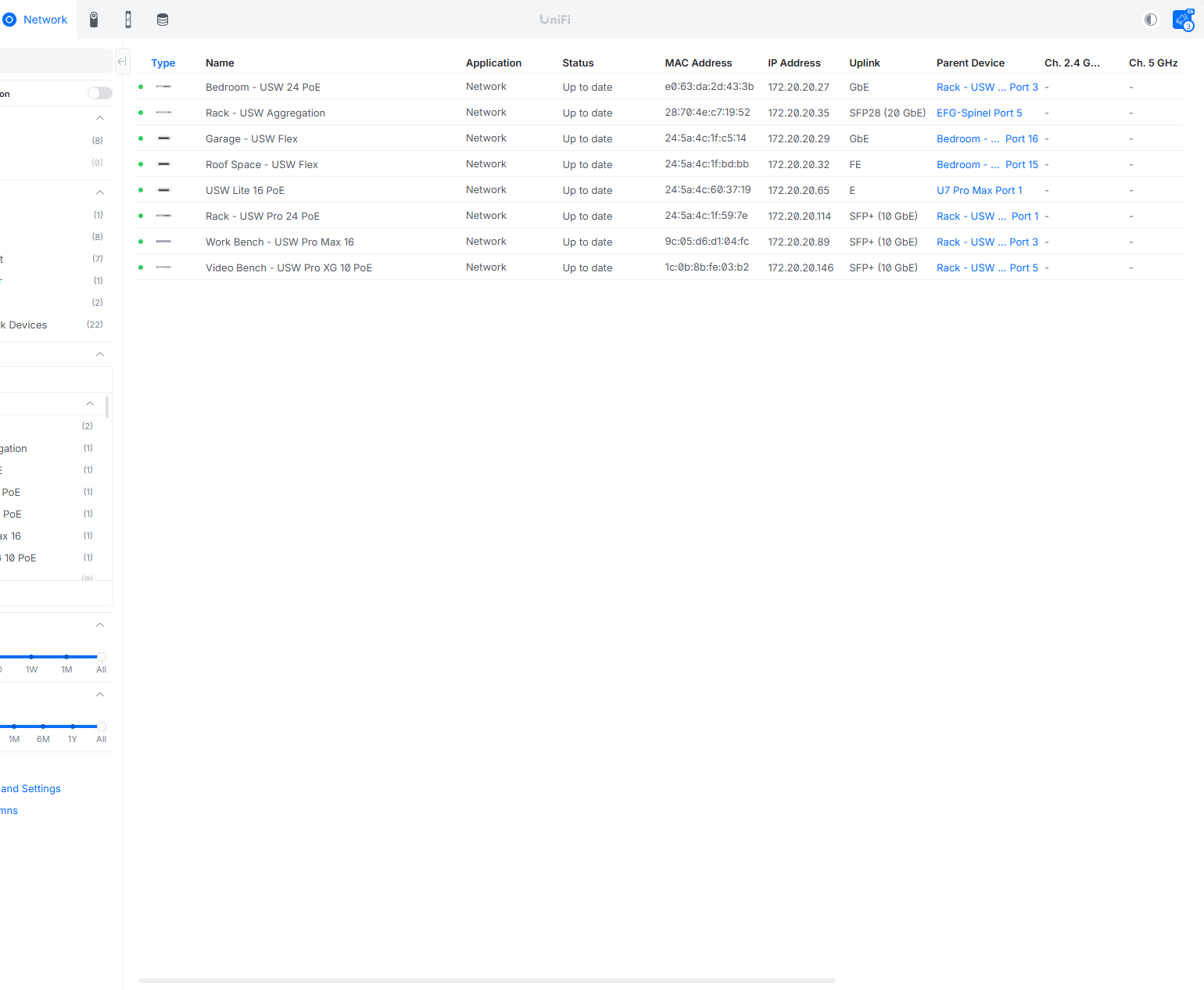
As you can see below it was able to discover the controller and we were able to adopt it and its's parent device is the U7-Pro-Max.
Was this article helpful?
That’s Great!
Thank you for your feedback
Sorry! We couldn't be helpful
Thank you for your feedback
Feedback sent
We appreciate your effort and will try to fix the article